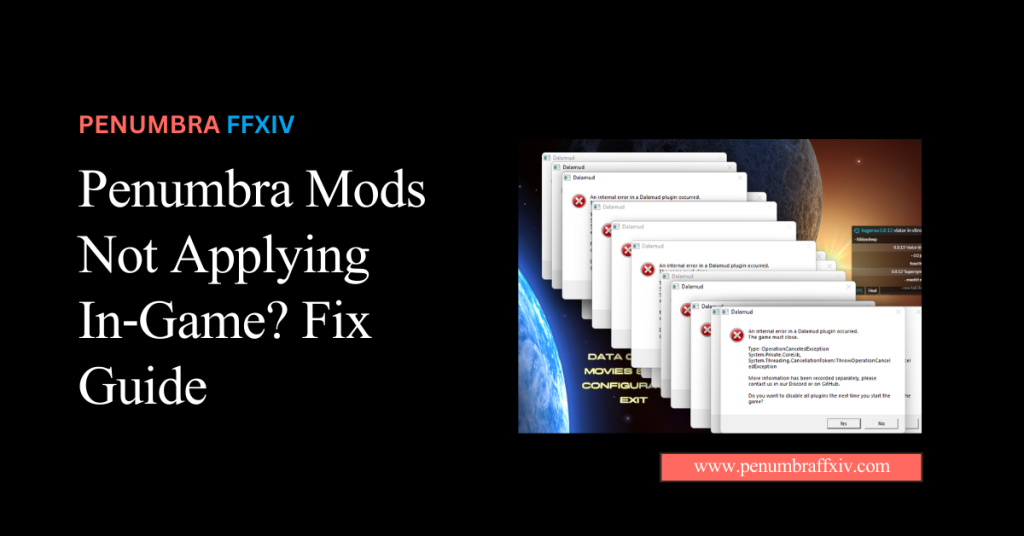
Penumbra Mods Not Applying In‑Game? Fix Guide
It might be very annoying to spend hours getting your character’s look just right, only to find that your custom textures won’t show up. If your visual tools stop talking to the game engine, it’s usually because the redirection path is broken or an option is turned off.
This article is the best survival kit you could ask for when your favorite Penumbra Mods refuse to load properly. It will show you the most common reasons your custom assets may not appear, from simple toggles to complex internal conflicts.
We’ll look at the common problems with file paths, collection details, and technical issues that arise after a major update. By using Penumbra FFXIV as your primary customization hub, you have the most powerful tools at your disposal to quickly solve these issues.
Let’s walk through the steps to get your character looking exactly how they should in no time! By the end of this guide, your visual setup will be back to peak performance.
What are the Primary Reasons for Mods Failing to Render?
The most frequent cause for hidden assets is a simple mismatch between your mod folder and the plugin’s settings. If the “Mod Root” path points to the wrong place, the system is looking in an empty closet.
Another common issue is forgetting to assign your mods to a specific collection that is linked to your character. Without this link, the game has no idea that you want your specific hero to wear those custom textures.
Incorrect Mod Root Directories
Check your main settings tab to ensure the path listed matches the exact folder on your hard drive. A single missing letter in the folder name can cause the entire system to stop working instantly.
Make sure your mods are not buried too deep in sub-folders, as the plugin might lose track of them. Keeping your mod directory shallow and organized is a pro move for a stable experience.
Inactive Collections and Missing Character
Navigate to the “Collections” menu and make sure your character’s name is actually listed in the assignments. If your name isn’t there, the plugin will just show the standard game gear instead of your FFXIV modding with Penumbra.
Sometimes a collection is created but not “Active,” meaning the game is ignoring all the mods inside it. Always double-check that the dropdown menu shows your chosen collection as the currently selected one.
The Quick Fix Workflow: Restoring Your Visual Experience
When your mods don’t show up, the first thing you should do is try a “Force Redraw” to wake up the system. This tells the game to stop using the current model and build it again using your active files.
It is a simple command that solves most visual glitches without requiring you to restart your entire game client. Think of it as a quick “refresh” for your character’s digital skin and clothing.
Forcing a Character Redraw and Reload
- Type the “Redraw” command in your chat box or click the button in the plugin menu.
- Wait for your character to flicker for a second while the new textures load in.
- Check if the “Enable” box is checked for both the individual mod and the collection.
- Restart the plugin from the main installer menu to clear out any temporary memory errors.
Verifying Plugin Activation Status
Sometimes the plugin itself gets disabled during a game update to prevent penumbra crashing after FFXIV patch. Open your main plugin manager and ensure the status light is green and the plugin is “Running.”
If it shows as “Disabled,” click the toggle to turn it back on, then wait for it to initialize. A quick check here can save you a lot of time searching for file errors that don’t actually exist.
Data Conflict Resolution: Managing Priority and Overlapping Files
If you have two mods that change the same piece of armor, they might fight each other, causing issues. You can solve this by using the “Priority” setting to tell the game which mod is more important.
Giving a mod a higher number ensures it always wins the fight and appears correctly on your screen. This is the best way to manage a large library where many items may overlap.
Identifying Priority Conflicts vs. Missing Files
| Diagnostic Factor | Priority Conflicts | Missing Files |
| Error Message | Overlap or Redundant Data | File Not Found / 404 |
| System Behavior | Visual Glitches or Stuttering | Immediate Crash to Desktop |
| Primary Cause | Two mods fighting for one spot | Deleted or corrupted assets |
| Fix Difficulty | Easy (Change priority order) | Moderate (Redownload/Verify) |
| Detection Method | Conflict Checker Tool | Verbose Error Logs |
How to Use the Debug Tab
The “Debug” tab is a powerful hidden tool that shows you exactly which file the game is currently using. It provides a live feed of every texture path, making it easy to spot if the game is ignoring your mod.
If you see a path leading to the game’s main data folder instead of your mod folder, you know the redirection failed. This helps you narrow down exactly which setting needs to be adjusted to fix the problem.
Technical Troubleshooting: Solving Framework and Permission Blocks
Sometimes your Windows security settings are a bit too protective, blocking the plugin from reading files. If the game doesn’t have permission to look into your mod folder, it will ignore all your custom assets.
Running your game launcher as an Administrator is a quick way to bypass these security blocks safely. It gives the plugin the “keys” it needs to access all your folders without being stopped by your antivirus.
Auditing Your PC Security and Firewall Settings
- Add your “Mod Root” folder to the exclusions list in Windows Defender.
- Ensure your game is running in “DirectX 11” mode as most mods require it.
- Check that your “Settings” file is not marked as “Read Only” in the properties.
- Verify that you have the latest version of the .NET Runtime install mods with penumbra on your computer.
Managing .NET Dependencies and Runtime Error Fixes
The framework relies on specific Windows files called “.NET” to handle all the complex data swapping. If these files are out of date, the plugin might crash or simply fail to load your textures correctly.
Visiting the official Microsoft website to download the latest “Desktop Runtime” usually fixes these deep system errors. Keeping your Windows environment up to date is just as important as keeping your mods up to date.
Advanced Recovery: Fixing Broken JSON Files and Corrupt Data
If the basic fixes don’t work, you might have a tiny bit of corruption in your configuration files. These files are like the “brain” of the plugin, and if they get confused, the whole system can fail.
Deleting the “Settings.json” file and letting the plugin create a brand-new one is a very safe way to reset. You won’t lose your mods, but you will need to tell the plugin where your folder is again.
Cache Clearing vs. Full Plugin Reinstallation
| Repair Step | Cache Clearing | Full Reinstallation |
| Primary Goal | Deletes temp files & old data | Replaces corrupted core logic |
| Risk Factor | Zero (Safe for all settings) | High (Wipes custom configs) |
| Resolution Time | Under 2 Minutes | 15 – 30 Minutes |
| Success Rate | High for loading errors | Absolute for system crashes |
| User Settings | Totally Preserved | Lost (Unless backed up) |
Re-import Assets After a Major Game Version Bump
When a massive game expansion drops, the game’s internal file map changes completely. This can break your old mod imports, causing them to appear as static or strange colors on your character.
To fix this, use the “Clean Import” tool to let the plugin re-scan your mod files against the new game data. This refreshes the “map” and ensures your old favorites work perfectly with the new version of the game.
Conclusion
Having your mods fail to apply is a temporary hurdle that can be easily cleared with a bit of organization. By checking your paths, assignments, and priorities, you can fix almost any issue in just a few minutes.
Remember that keeping your setup organized is the best way to prevent these problems from happening again. Always double-check your settings and ensure your character is correctly assigned to the right collection.
You have worked hard to create a unique look, and these steps ensure that vision is always visible. Get back into the game, hit that redraw button, and enjoy Eorzea with your perfectly functioning custom style!
Frequently Asked Questions (FAQ)
Why is the “Enable” button grayed out for me?
This usually means you haven’t set a “Mod Root” folder in the settings tab yet. First, select a folder on your hard drive to hold your mods to activate the menu.
Will I lose my mods if I delete the settings?
No, your actual mod files are kept in a separate folder that the plugin doesn’t delete. Deleting settings just resets the “map” the plugin uses to find them.
Why do my mods disappear after an update?
Major game updates often disable third-party tools for your safety. You usually just need to wait for a framework update and then re-enable the plugin in the launcher.
Does it matter which drive my mods are on?
It is best to keep your mods on an SSD, preferably the same one as your game. This helps textures load much faster and prevents your character from looking invisible.
What should I do if my character’s face turns black?
This is a classic texture conflict between two different skin mods. Try disabling other skin mods or increasing the priority of the one you want to see.
Why does the “Redraw” command not do anything?
If the redraw doesn’t work, the plugin might not be active in your main menu. Check your launcher to make sure the framework is running and the plugin is installed.
Can I fix the invisible gear without restarting?
Yes, usually by checking the “Associated Items” tab in the mod settings. Make sure the mod knows exactly which piece of gear it is supposed to be replacing.
Why are mods showing on NPCs but not on me?
This means you have your mods in the “Global” collection instead of a personal one. Move them to a character-specific collection and assign it to your name.
Latest Posts: