Introduction
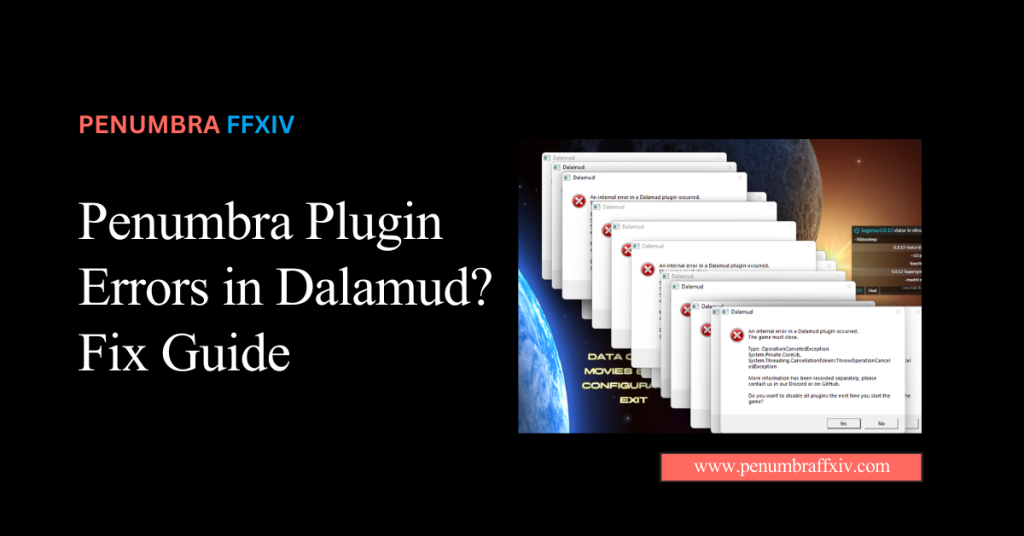
Penumbra is a powerful tool for customizing Final Fantasy XIV, but like any plugin, it can occasionally run into issues. Many players encounter Penumbra plugin errors in Dalamud, which can prevent mods from loading properly or cause unexpected behavior in-game.
These errors can range from simple permission blocks to complex data mismatches that occur after a major software update. This guide is designed to be your ultimate troubleshooter, stripping away the confusing jargon to provide clear, actionable steps that restore your visual engine to peak performance.
By understanding how to read these specific alerts and knowing which settings to toggle, you can prevent data loss and keep your character looking stunning. Using Penumbra FFXIV within your stable framework is the most reliable way to play, and with these fixes, you will be back to your glamorous self in no time!
What are the Most Common Plugin Errors During Startup?
When you first launch the game, the plugin manager tries to start all your tools at once, which can sometimes lead to a “Failed to Load” message. This usually happens if the framework is still waiting for a core game file to become available.
Another frustrating hurdle is the “Access Denied” error that appears when your security settings prevent the plugin from reading your folders. It feels like a locked door, but it is actually a safety feature that is very easy to adjust.
Resolving Failed to Load or Missing Dependency Alerts
If you see a dependency error, it means the plugin is looking for a specific Windows file that is missing or outdated. Simply updating your system files or re-downloading the plugin from the official repo usually clears this up instantly.
These alerts are the system’s way of telling you that it needs a little help from your operating system. Once the missing file is installed, the plugin will automatically find it and run without any further issues.
Fixing Directory Access Denied
Permissions errors occur when the game doesn’t have the “authority” to change files in your chosen mod directory. Moving your mod folder out of protected system areas and onto a dedicated drive is the fastest way to grant access.
You can also right-click your mod folder and ensure that “Read Only” is unchecked in the properties menu. This allows the plugin to write the temporary data it needs to swap your character’s textures in real time.
Identifying Critical vs. Non-Critical Plugin Alerts
Knowing the Penumbra supported mod types and which errors need immediate attention is key to a stress-free experience. Some alerts are just warnings that won’t stop your mods, while others require a quick fix before you can play.
| Missing Dependency | High (Won’t Load) | Install .NET / Update Tool |
| Path Not Found | Moderate (No Mods) | Re-link Mod Root Folder |
| Version Mismatch | Low (Minor Bugs) | Update Plugin via Repo |
The Repair Workflow: Restoring Your Redirection Engine
If your plugin is acting sluggish or refusing to show your latest imports, a clean refresh of the engine is often the best medicine. This process clears out the temporary memory and forces the tool to re-scan your entire library for any changes.
You don’t need to be a computer expert to follow this workflow; it is built into the interface, making maintenance a breeze. Taking these steps ensures that your fashion logic is perfectly synced with the game’s current internal data.
Reinstalling and Refreshing Your Plugin
- Open your main plugin manager and find the redirection tool in the “Installed” list.
- Select the option to uninstall the plugin to clear out any old or broken files.
- Go to your settings and clear the cache to remove any lingering temporary data.
- Reinstall the plugin from the official repository to get a fresh, clean copy.
- Restart your game client to ensure the new installation is fully recognized.
Use the Error Log to Pinpoint Broken Texture Paths
The error log is a text file that records every action the plugin takes while the game is running. If a mod isn’t showing up, the log will tell you exactly which file path is causing the problem.
Learning to read the last few lines of this log can save you hours of guessing and searching. It points you directly to the “broken” mod so you can fix it or delete it without affecting the rest of your library.
Handling Repository Failures: Keeping Your Software Up to Date
Sometimes the update button won’t work because the link to the community server has been moved or blocked. This can affect a Non-Destructive Mod Install and prevent you from getting the latest stability patches for your game.
Manually updating your repository list is a great way to ensure you are always pulling data from a reliable source. It only takes a second to copy and paste a new link, but it can save you from major technical headaches later.
Checklist for Fixing Custom URL and API Connection Issues
- Check that the repository link in your settings matches the one on the community page.
- Make sure “Third-Party Plugins” are enabled in your main framework settings.
- Disable any VPN you are using to see if it is blocking the update server.
- Hit the “Refresh All” button to force a new check of all your links.
Managing Incompatible Version
After a game update, you might see a warning that your plugin version is no longer compatible with the framework. This is a safety feature that prevents the game from crashing while the developers work on a fix.
The best solution is to wait for the official update to appear in your plugin manager and then click “Update All.” Trying to force an old version to work can lead to serious errors that might corrupt your settings.
Quick Fixes for Common System Error Codes
If you see a specific error code in your log, you can use this table to find the fix without searching forums. These are the most common issues players encounter when managing their visual libraries.
| Code 404 | Link is Broken | Update the Repo URL |
| Null Reference | Corrupt Mod | Re-import the Mod File |
| Unauthorized | Permission Block | Run as Administrator |
Optimizing Your System Environment for Better Plugin Stability
The health of your entire computer affects how well your plugins run during an intense gaming session. A cluttered system can slow down the texture-swapping process, leading to “stuttering” or long loading times in busy cities.
Simple maintenance like clearing out old files and keeping your drivers updated goes a long way. It provides a clean environment in which the plugin can do its job without competing for resources.
Adjusting Antivirus Exclusions to Stop Silent File Blocking
Antivirus programs are sometimes suspicious of tools that change game files and might block them without telling you. Adding your mod folder to the “Exclusions” list tells the antivirus that the files in that folder are safe.
This Runtime Mod Loader prevents the antivirus from “quarantining” your mods, which is a common reason textures suddenly disappear. It is a one-time setup that ensures your custom look stays active and visible.
Ensuring Proper Runtime Installation for Background Tasks
Runtimes are small helper files that the plugin uses to perform its complex background tasks. If these helpers are missing, the plugin might load but fail to actually change any textures in the game.
Always make sure you have the latest “Desktop Runtime” from the official Microsoft website. This is the most important background task for any modding tool, and keeping it up to date ensures maximum stability.
Conclusion
Resolving plugin errors is a normal part of the modern gaming experience, and having the right knowledge makes it fast. By staying on top of your permissions and keeping your links up to date, you ensure your visual journey is never interrupted.
Most errors are just the system’s way of asking for a quick update or a minor setting adjustment. They are rarely serious problems, and they are almost always fixed with just a few clicks of your mouse.
You have built a unique and powerful look for your character, and these simple steps are the armor that protects it. Keep your environment clean, keep your tools updated, and enjoy showing off your perfectly functioning style to everyone in the world!
Frequently Asked Questions (FAQ)
Why does my plugin show a red error in the list?
This usually means the plugin failed to start because of a version conflict. Try uninstalling it and re-installing from the repository to get the latest stable version.
What is a “Missing Dependency” error?
This means your computer is missing a Windows file needed to run the plugin. Downloading the latest .NET Desktop Runtime from Microsoft will fix this issue immediately.
Why did my mods disappear after a plugin error?
Your mods are likely still safe on your drive, but the error may have reset your folder path. Just go into the settings and re-select your mod root folder.
How do I find the error log to see what happened?
You can find the log by clicking the “Debug” or “Info” tab in your plugin manager. It gives a detailed list of every action the tool took before failing.
Is it safe to use experimental versions?
Experimental versions have new features but are much more likely to have errors. For the best experience, always stick to the “Stable” branch for your main gameplay.
Why does my antivirus flag the plugin?
Antivirus programs can be suspicious of tools that modify game memory. Adding the plugin to your “Exclusions” list will stop these false alerts and keep things running.
What if the plugin keeps crashing my game?
This is often caused by a corrupt mod file rather than the plugin itself. Try turning off all mods and enabling them one by one to find the specific item.
Latest Posts:
- Domain Lookup: A Complete Guide to Finding Domain Information
- How to Force Show an Accessory in Penumbra FFXIV: Fix Hidden Earrings, Necklaces, Bracelets, and Rings
- What Is Mare Synchronos? FFXIV Mod Synchronization, Privacy, and Current Status
- How to Install Eye Mods in FFXIV Penumbra: Complete Beginner Guide
- How to Install Tattoo Mods in FFXIV Penumbra: Complete Beginner Guide