Top Penumbra Mods for FFXIV Visual Enhancements
Transforming the visual fidelity of Eorzea has never been more accessible or exciting for modern players. While the base game offers a beautiful aesthetic, the community-driven world of high-definition textures and realistic lighting takes your immersion to an entirely new level.
This guide is your curated treasure map, showcasing the absolute best visual upgrades currently available for your redirection engine. We have scoured the most popular repositories to find the gems that offer the most significant impact on your character’s appearance and the environment around them.
By using Penumbra FFXIV as your management hub, you can layer these stunning enhancements without worrying about permanent file corruption or long loading times. Let’s dive into this collection of top-tier artistic projects and discover how you can turn your every adventure into a cinematic experience today!
What are the Top-Rated Character Enhancement Mods for Penumbra?
Character mods are the most popular Character Enhancement Mods choice because you see your hero in every single moment of gameplay. These mods focus on making faces, skin, and hair look as realistic as possible using high-resolution assets.
By upgrading your character’s model, you ensure that even the oldest races look fresh and up to date. These mods act as a “next-gen” patch that Square Enix hasn’t released yet, giving you a serious visual edge.
Detailed Skin Shaders and High-Definition Face Textures
Mods like “Face Defined” and “Upscaled Character Textures” by Kartoffel are essential for adding depth to facial expressions. They remove the “painted-on” look of vanilla faces and replace them with detailed, lifelike shaders.
These textures handle light much better than the base files, making your character look great in any weather. Whether you are in a dark cave or the bright sun of Thanalan, your face will look smooth and natural.
Realistic Hair Physics and Improved Mane Meshes
“Hair Defined” is the gold standard for fixing the blocky, plastic look of default hairstyles in the game. It adds thousands of individual strands to each hair model, making it look soft and flowy in motion.
Pairing this with custom physics mods ensures that your hair reacts to the wind and your character’s emotes. It removes the stiff feeling of old hair meshes and replaces them with something that truly belongs in 2026.
Comparison Table: Performance Impact of Popular Texture Packs
| HD Faces | Very High | 1-3 FPS | 4GB+ |
| 4K Body Mods | High | 5-10 FPS | 8GB+ |
| World Overhaul | Massive | 15+ FPS | 12GB+ |
Essential Equipment Overhauls: Sharper Armor and Weapons
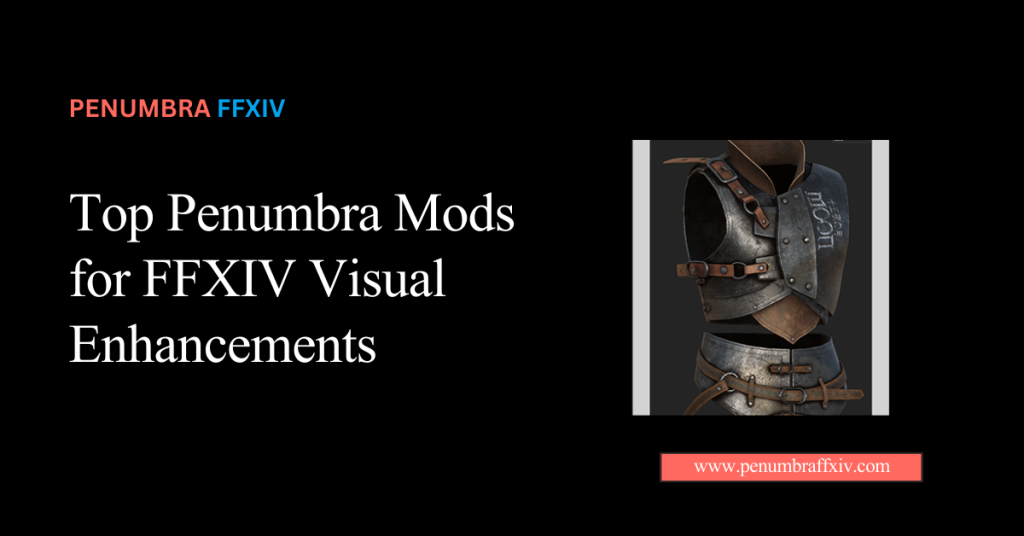
When you zoom in, default armor can look muddy, but equipment overhauls make every buckle and sword look sharper. These mods systematically replace thousands of old gear textures with high-quality, high-impact new ones.
Even the most basic level 1 gear looks like a high-end relic from a later expansion when you use these changes. It makes your clothes more consistent, so every piece of gear is worth wearing.
Step-by-Step Points for Installing Global Gear Replacers
Download a comprehensive gear pack, such as “Vanilla+ Armor,” to cover the most items.
Use the “Import” tool in the plugin menu to bring the files into your library.
Set the priority of your gear mods higher than your character mods to avoid glitches.
Enable the mod and use the “Redraw” command on your character to see the change.
Check your weapon separately to ensure the metallic shine is working correctly.
Upgrading Low-Resolution Legacy Textures to Modern Standards
Legacy gear from A Realm Reborn often looks very blurry compared to newer items found in Dawntrail. Modern upscaling mods use AI and hand-painting to bring these old favorites up to a 4K standard.
This means you can keep your favorite classic glamour without feeling like your character is made of pixels. It breathes new life into years-old content, making the entire game world feel unified and sharp.
Environmental Mastery: Weather and Lighting Enhancements
Environmental mods change the atmosphere of entire zones by tweaking how the sun, clouds, and rain appear. These mods can make a rainy day in Gridania feel moody, or a sunset in Costa del Sol look truly breathtaking.
By mastering your environmental settings, you turn the game world into a living, breathing landscape. It is the final layer of polish that makes the game feel like a modern masterpiece every time you log in.
Checklist for Optimizing World Textures and Water Reflections
Install “Upscaled World Textures” to sharpen the ground and rocks around you.
Enable a custom skybox mod to get more realistic clouds and stars at night.
Check your water settings to ensure reflections are clear and not flickering.
Use a lighting mod like “Alive GShade” or “Luminosity” to balance the colors.
How to Layer Visual Mods for the Ultimate Cinematic Look
The secret to a great look is layering different mods together so they complement each other perfectly. You should have one mod for your character, one for your gear, and one for the world environment.
When these three layers work together, you get a seamless visual experience that looks better than any single mod could provide. It takes a little bit of testing, but the results are absolutely worth the extra effort.
Comparison Table: Best Mods for Character vs. Best Mods for World
| Primary Focus | High-definition skin, eyes, and hair. | Better clouds, water, and grass. |
| Visual Impact | Massive in cutscenes and close-ups. | Huge during exploration and travel. |
| FPS Impact | Very Low (Easy on your PC). | Moderate to High (Needs better GPU). |
| Best Mod Example | Face Defined / Bibo+ / TBSE | Upscaled World / HD Nature |
| Setup Difficulty | Easy (One-click import). | Moderate (Needs priority tuning). |
Performance Balancing: Keeping Your Framerate Stable with Visual Mods
The most important part of Convert Mods From TexTools to Penumbra is making sure your game still plays smoothly during a high-speed boss fight. You don’t want a beautiful game that runs at 10 frames per second when you are trying to dodge attacks.
Balancing your performance involves picking and choosing which high-res textures are actually worth the hit to your FPS. You should prioritize the mods you see the most and keep the others at a medium resolution.
Using Texture Compression to Save Video Memory
Many modern mods come with BC7 compression, which keeps the art looking sharp while using much less memory. This is a lifesaver for players who want a great look without spending $2,000 on a graphics card.
Always look for “performance” or “compressed” versions of your favorite mods if you notice your game is stuttering. It delivers 90% of the visual quality with almost no impact on your game’s speed.
Managing Priority to Avoid Visual Artifacts and Flickering
Flickering occurs when two mods try to display a texture in the same spot at the same time. You can fix this easily by giving your favorite mod a clear, high-priority number in the settings.
This tells the engine exactly which beautiful file to show first, instantly clearing up any visual mess. Keeping your priority list organized is the best way to ensure a stable and glitch-free experience.
Conclusion
Raising the graphics in your game is a fun way to see the world you love again with new eyes. You can make every moment in Eorzea feel exceptional by choosing the right high-definition enhancements and balancing them for your PC’s performance.
These top-notch mods are not just about pixels; they also make your journey more emotional and your character’s story more beautiful. Keep in mind that modding is a creative process, so don’t be afraid to try out several styles until you find the one that works best for you.
With a clean organization and a solid understanding of performance, your high-fidelity world will be stable, fast, and absolutely stunning. You have the tools and the roadmap to turn your game into a visual powerhouse that reflects your unique style. Enjoy the view, take plenty of screenshots, and have fun exploring your new, beautiful world!
Frequently Asked Questions (FAQ)
Which visual mod should I install first?
Start with a high-definition skin and face pack to get the biggest immediate improvement. Since your character’s face is the star of every cutscene, these textures provide the most noticeable visual upgrade for your journey.
Will high-definition mods slow down my game?
They can if you overload your system with too many 4K textures at once. It is best to stick to 2K resolutions to maintain a perfect balance between sharp visuals and high framerates on most modern PCs.
Can I use multiple character mods at the same time?
Yes, you can layer different mods as long as they don’t try to change the exact same body part. If they do overlap, simply use the priority system to tell the plugin which specific look you want to see.
Why do some textures look “blocky” even with mods?
This usually happens when a lower-quality mod is accidentally overriding your high-definition textures in the list. You can fix this instantly by moving your preferred high-res mod to a higher priority position.
Are visual mods safe for my account?
Visual mods are “client-side,” meaning the changes only appear on your screen, and no one else can see them. Because they don’t give you a gameplay advantage, the community generally considers them safe to use.
How do I fix textures that look too bright?
Over-brightness is usually caused by a lighting mod or a mismatch in your game’s gamma settings. You can fix this by tweaking the mod’s specific internal settings or adjusting the brightness slider in the game menu.
Do I need a powerful PC for 4K textures?
Yes, 4K textures demand a lot of video memory (VRAM) to run smoothly without stuttering. If you experience crashes in crowded player hubs, switching to 2K versions will give you great detail with much better stability.
What is the best way to see the difference after installing?
The best way is to stand in a brightly lit area, such as Old Sharlayan, and use the “Redraw” command. Toggling the mod on and off in real-time will show you exactly how much extra detail you have added.
Latest Posts:
- Domain Lookup: A Complete Guide to Finding Domain Information
- How to Force Show an Accessory in Penumbra FFXIV: Fix Hidden Earrings, Necklaces, Bracelets, and Rings
- What Is Mare Synchronos? FFXIV Mod Synchronization, Privacy, and Current Status
- How to Install Eye Mods in FFXIV Penumbra: Complete Beginner Guide
- How to Install Tattoo Mods in FFXIV Penumbra: Complete Beginner Guide