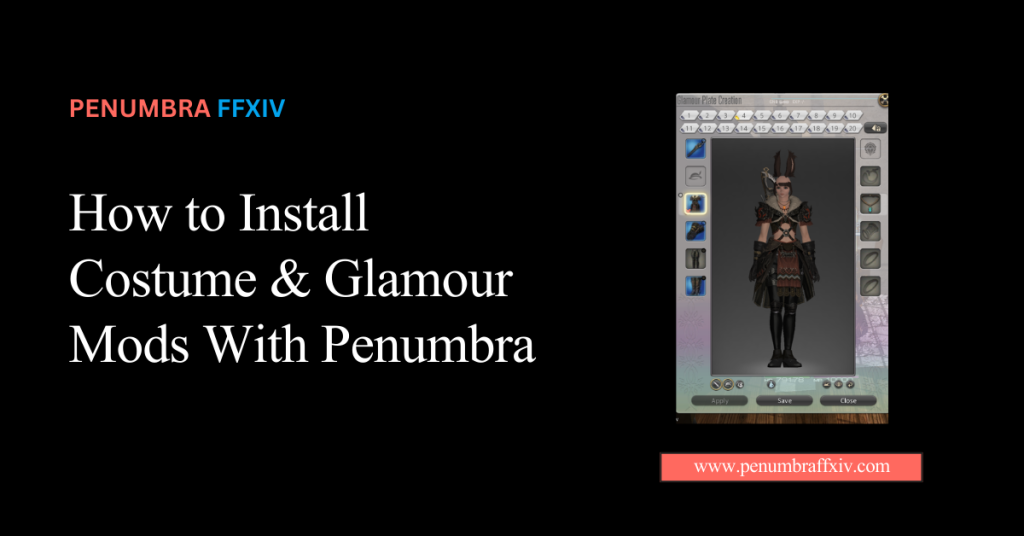
How to Install Costume & Glamour Mods With Penumbra
Welcome to the next level of Eorzea’s fashion scene, where your imagination is the only limit to your style. For years, players were stuck with standard armor sets, but advanced redirection tools have changed the glamour game forever.
By choosing Penumbra FFXIV as your primary engine, you are moving away from old-school file edits and entering a world of safe, real-time swaps. We will walk you through the entire process, from finding the perfect files to enabling them without ever restarting your game.
Whether you want to look like a modern street racer or a legendary hero from another world, we have the technical steps and tips to make it happen. Get ready to turn every city hub into your personal runway and express your unique identity like never before!
What are the basic requirements for installing glamour mods?
Before you start your fashion journey, you need a high-speed SSD with a dedicated folder for your new digital wardrobe. This folder acts as the brain for all your textures and models, so keep it organized and away from your official game files.
You must also have the latest version of the plugin running through your third-party launcher to ensure everything loads smoothly. Having a modern setup prevents errors and ensures that even the heaviest 2026 costume files load without lag or stutter.
Finding High-Quality .pmp and .ttmp2 Costume Files
Most modern costumes use the “.pmp” or “.ttmp2” format because they are easy for the redirection engine to read. You can find these files on popular community archives where talented creators share everything from casual wear to battle armor.
Organizing Your Mod Root Folder for Clean Category Management
A messy mod folder is a nightmare to manage, so it is best to create sub folders for “Tops,” “Bottoms,” and “Full Outfits.” This simple organization makes it much easier to find and swap specific pieces when you want to change your aesthetic.
Step-by-Step Points for Importing and Enabling Your First Outfit
The import process is designed to be quick and easy, so you can spend more time playing and less time clicking menus. The tool handles all the file extraction for you, making the transition to a new outfit feel totally seamless.
- Step-by-Step Points for Importing and Enabling Your First Outfit
- Open the “Mods” tab in your plugin window and click the “Import” button at the bottom.
- Browse your computer for the costume file you downloaded and select it for extraction.
- Give the mod a clear name so you can easily recognize it in your list later on.
- Click the “Enable” button next to the mod name to activate the redirection.
- Type the redraw command in your chat box to refresh your character and see the new look.
Conflict Resolution: Managing Overlapping Armor Mods
Sometimes two different mods will try to replace the same piece of gear, which can cause visual glitches if not handled properly. During Advanced Editing in Penumbra, the priority system tells the game which specific mod should “win” and show up on your character.
By assigning a higher number to your favorite costume, you ensure it always takes priority over any other conflicting files. This allows you to mix and match parts from different creators to build a truly unique and personalized outfit.
Comparison Table: Manual Item Swaps vs. Auto-Redirection
| Control | Full (Choose any target) | Standard (Preset target) |
| Effort | Moderate (Manual setup) | Very Low (One click) |
| Flexibility | High (Mix and Match) | Low (Fixed sets) |
How to Use the Advanced Tab to Change the Target Item
The “Advanced” tab is perfect for players who want to move a costume from one piece of gear to another. For example, if a mod replaces a shirt you like, you can use this tab to redirect it to another item.
This feature gives you ultimate control over your glamour dresser without needing to edit any complex code yourself. It makes your mod library much more flexible, allowing you to wear your favorite looks for any job you choose.
Advanced Customization: Using Glamourer with Your New Mods
The real magic happens when you pair your costume mods with an appearance-shifter tool to change gear on the fly. This combination allows you to wear any modded outfit regardless of what your character is actually wearing in their inventory.
It is the ultimate tool for the modern adventurer, giving you total freedom over your look at all times. You can save these designs as presets, allowing you to swap between entire costumes with just a single button press.
- Checklist for Syncing Custom Costumes with Your Character Plate
- Ensure the mod is enabled in your main list before opening the shifter tool.
- Check that your material suffixes match your body mod for perfect skin tones.
- Save your favorite look as a “Design” so you can apply it later when you change jobs.
- Verify that the automatic application is enabled for your character name.
Comparison Table: Modded Costumes vs. Standard In-Game Glamour
| Variety | Limited by Game Data | Unlimited Community Art |
| Cost | High (Prisms/Market) | Free (Community Content) |
| Visual Quality | Standard (PS5 Level) | High-End (4K/8K PC Level) |
Troubleshooting: Fixing Invisible Armor and Broken Textures
If your character’s chest piece disappears or looks like a grey blob, it usually means a file path is broken. This often happens when the mod is looking for a texture that was moved or named incorrectly during the import process.
To fix this, go to the advanced settings and check if any file paths are highlighted in bright red. Matching the folder names to the ones in the configuration file will usually bring your costume back to life instantly.
Verifying File Paths to Ensure Models Load Correctly
Double-check that all your Penumbra head & body cosmetic mods are actually inside the root folder you selected during the initial setup. If the plugin can’t find the folder, it won’t be able to redirect the game’s data to your custom costume.
The Importance of the Redraw Command for Real-Time Updates
The game doesn’t always realize you have changed a mod setting while you are standing still in a city. Using the redraw command forces the engine to reload your character model and apply your new textures immediately.
Conclusion
Mastering the art of costume and glamour installation is the ultimate way to make your adventure feel truly personal and unique. By using a modern redirection system, you can enjoy limitless style options while keeping your game files safe and performance high.
The ability to swap outfits in real-time and resolve conflicts with a simple priority number gives you more control than ever before. Remember that the community is always creating new looks, so keep your library up to date to stay at the top of the fashion game.
Whether you are raiding with your friends or posing for screenshots in a scenic zone, your custom look will set you apart from the crowd. Take what you have learned, start building your dream wardrobe, and enjoy the most beautiful version of your hero every time you log in!
Frequently Asked Questions (FAQ)
Can I wear a modded costume meant for a different race?
Some mods are race-neutral, but many are built for specific models and might look broken on others. If the mod looks strange, you may need a specific “Race Port” to fix the alignment.
Why does my costume only show up for me, not for my friends?
Mods are “client-side,” meaning they only change files on your screen, not anyone else’s. To share your look with others, you both need a synchronization plugin to link your mods.
How do I fix a mod that makes my skin look purple?
This is a material conflict that happens when your costume doesn’t match your body mod. Make sure the material suffixes are correct and match the body type you are currently using.
Will my costume mods break after a game maintenance?
Usually, no! Since the plugin doesn’t touch your actual game files, your mods stay safe, though you might need to wait a few hours for a plugin update.
Can I change which item a costume replaces?
Yes! You can use the “Item Swap” feature in the advanced settings to move a costume to any other gear piece. This allows you to wear any mod on any item you want.
What should I do if my game crashes after enabling an outfit?
A crash usually means the model is too detailed for your graphics card to handle at once. Try disabling other heavy mods or using a lower-resolution version of the costume for better stability.
How many costumes can I have installed at once?
There is no hard limit to how many mods you can have in your library. As long as you have enough SSD space, you can keep thousands of outfits ready to swap.
Why is the redraw command so important for mods?
The game engine needs a “nudge” to realize you have changed a texture while you are logged in. Typing the redraw command refreshes your model with the new data.
Latest Posts:
- Domain Lookup: A Complete Guide to Finding Domain Information
- How to Force Show an Accessory in Penumbra FFXIV: Fix Hidden Earrings, Necklaces, Bracelets, and Rings
- What Is Mare Synchronos? FFXIV Mod Synchronization, Privacy, and Current Status
- How to Install Eye Mods in FFXIV Penumbra: Complete Beginner Guide
- How to Install Tattoo Mods in FFXIV Penumbra: Complete Beginner Guide